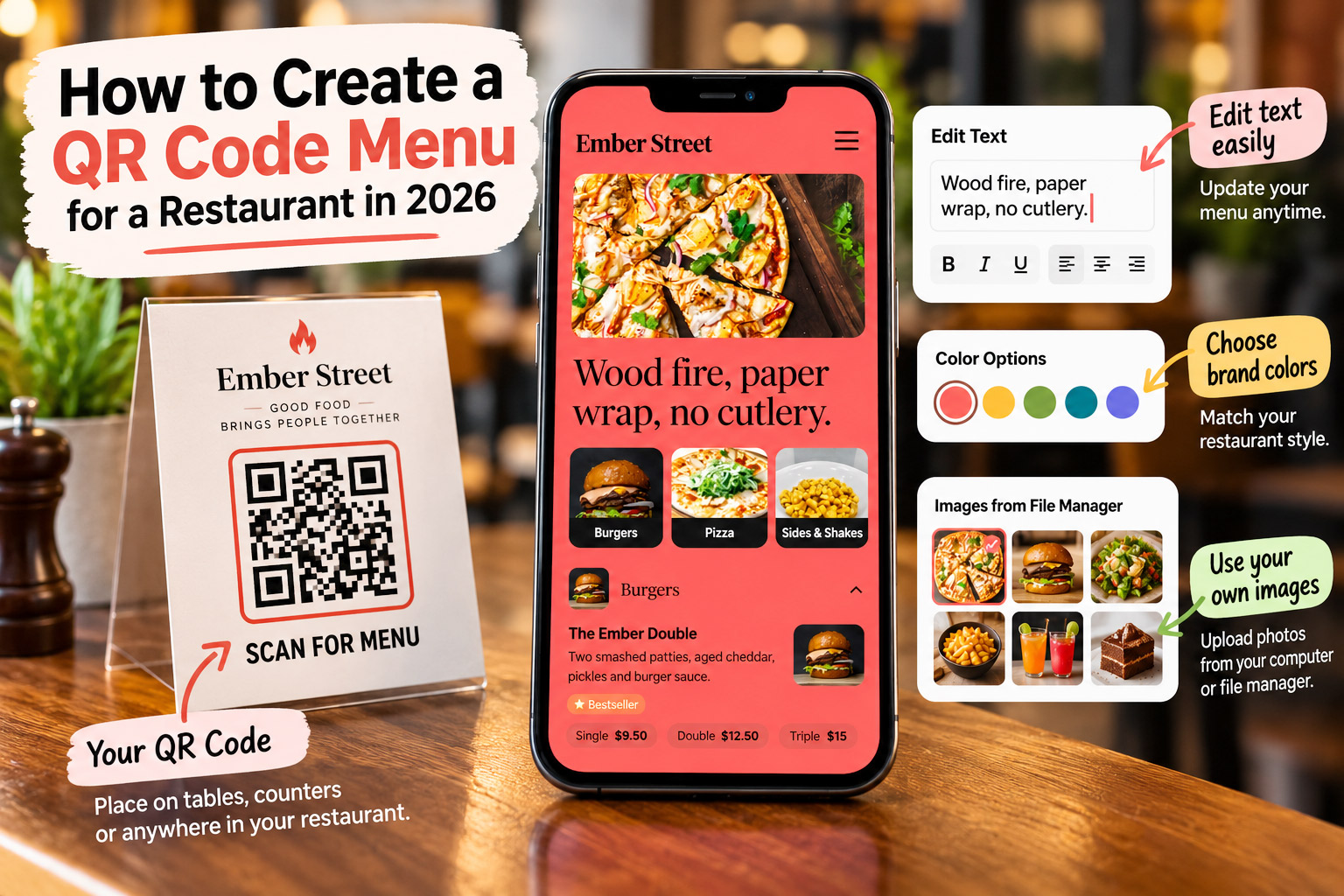
A practical, step-by-step guide to creating a restaurant QR menu that is easy for guests to use and easy for restaurant owners to manage
A restaurant menu doesn’t need to be complicated.
But managing one can become surprisingly complicated.
You change the price of a dish. Then you need to update the printed menu. You change the lunch menu. Then someone needs to update the QR menu. You add a new dish. Your old QR code still points to an outdated PDF. A customer scans the code and sees something that is no longer available.
This is where a QR code menu for a restaurant can make things much easier.
But there is one important thing to understand:
The QR code is not the menu. The QR code is the doorway to your menu.
The actual menu should live online in a place where you can update it whenever your restaurant changes.
In this guide, I’ll explain how to create a QR code menu, what you need before you start, how to make it easy for customers to use, where to place your restaurant QR code, and the mistakes restaurant owners should avoid.
I’ll also explain the difference between a QR menu and a PDF menu, because simply putting a PDF behind a QR code isn’t always the best experience for your guests.
What Is a QR Code Menu?
A QR code menu is a restaurant menu that customers can open on their smartphone by scanning a QR code.
Instead of handing a customer a physical menu, you can place a small QR code on:
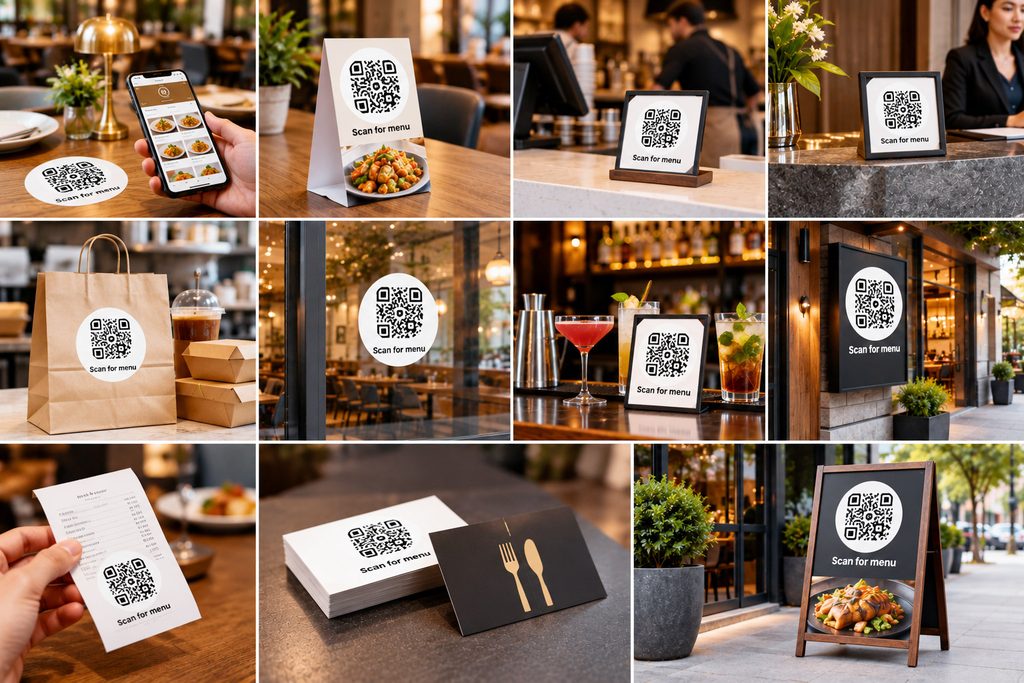
- Restaurant tables
- Table tents
- Countertops
- Reception desks
- Takeaway packaging
- Window displays
- Bar counters
- Restaurant entrance signs
- Receipts
- Business cards
- Outdoor signage
The customer opens their phone camera, points it at the QR code and taps the link.
The restaurant menu opens on their phone.
That’s the basic idea.
But there are two very different ways to build this experience.
Option 1: QR code → PDF
The QR code opens a PDF version of your menu.
This is simple, but it can create problems on mobile phones.
Customers may need to zoom in and out, scroll through large pages and wait for a PDF to load.
Option 2: QR code → Mobile digital menu
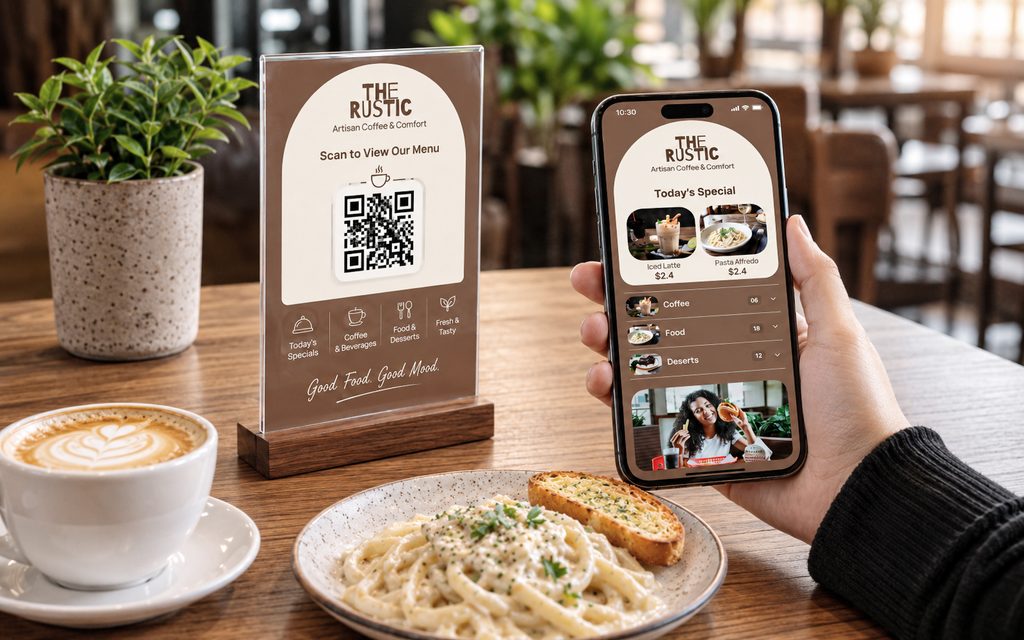
The QR code opens a menu designed specifically for smartphones.
Customers can see categories, dishes, prices, descriptions and photos in a format that is easier to browse.
For most restaurants, this is the better long-term experience.
And that’s why I recommend thinking of your QR code as the entrance to a live digital menu, rather than thinking of the QR code itself as the menu.
Why Are Restaurants Using QR Menus in 2026?
The biggest advantage isn’t actually the QR code.
It’s the ability to update your menu without replacing everything around it.
Imagine your restaurant has 20 tables.
Each table has a QR code.
You change the price of your Paneer Tikka from $12 to $13.
With a properly managed digital menu, you update the price once.
The next customer who scans the QR code sees $13.
You don’t need to create a new QR code.
You don’t need to print new table tents.
You don’t need to replace stickers.
You don’t need to send a new PDF to your staff.
That’s the real value of a restaurant QR menu.
A good QR menu gives you:
- Faster menu updates
- Fewer printing changes
- Easier price management
- Better mobile browsing
- Easy access to food photos
- A menu you can share online
- A single place to manage dishes
- The ability to highlight specials and bestsellers
- Better consistency between your digital and printed menus
The QR code is simply what connects the customer to that menu.
How Does a Restaurant QR Menu Work?
The process is easier than it sounds.
Think of it like this:
Your menu
↓
Live digital menu
↓
QR code
↓
Customer scans
↓
Menu opens on phone
The important part is the middle.
Your QR code should point to a stable menu URL.
That way, you can change what’s behind the QR code without changing the printed QR code itself.
For example:
Today:
Chicken Burger — $14
Tomorrow:
Chicken Burger — $15
The QR code doesn’t change.
The menu does.
This is an important difference between a static QR code and a QR code connected to a managed digital menu.
What Do You Need Before Creating a QR Menu?
You don’t need to be a designer or a technical expert.
Before you start, gather the information you already have for your restaurant.
1. Your current menu
This could be:
- Word document
- Existing printed menu
- Menu photos
- Spreadsheet
- Existing online menu
If your menu is already printed, don’t worry.
You don’t need to start from scratch.
2. Your dishes and prices
Make sure you have your current:
- Dish names
- Prices
- Descriptions
- Categories
- Sizes
- Add-ons
- Variations
For example:
Starters
Chicken Wings — $10
Crispy wings with your choice of sauce.
Paneer Tikka — $12
Grilled paneer with peppers and onions.
Main Course
Butter Chicken — $18
Creamy tomato-based curry served with basmati rice.
This information becomes the foundation of your digital menu.
3. Your restaurant branding
If you have them, collect:
- Logo
- Brand colors
- Restaurant name
- Restaurant photos
- Food photos
- Fonts
You don’t need a professionally designed brand kit.
A good digital menu can still look professional with a logo, two or three colors and clean typography.
4. Decide what customers should see first
Don’t simply copy the order of your old printed menu.
Think about the customer experience.
What do you want guests to discover?
Maybe:
Chef’s Specials
then:
Starters
then:
Mains
then:
Desserts
Or perhaps your restaurant is known for pizza, so:
Signature Pizzas
should appear first.
A digital menu gives you more flexibility than a traditional printed menu.
Step 1: Create Your Digital Menu
The first step is to create the actual menu that customers will see.
You can build one from scratch or convert your existing restaurant menu into a digital format.
If you already have a menu, start with that.
Don’t make the restaurant owner do unnecessary work.
A good menu system should make it easy to bring your existing menu online.
Keep the structure simple
For example:
Breakfast
- Avocado Toast
- Pancakes
- Masala Omelette
- Breakfast Bowl
Starters
- Chicken Wings
- Paneer Tikka
- Bruschetta
Main Course
- Butter Chicken
- Grilled Salmon
- Margherita Pizza
Desserts
- Cheesecake
- Chocolate Brownie
- Tiramisu
The customer should immediately understand where to find what they’re looking for.
Step 2: Add Your Categories and Dishes
Now add your menu categories.
Don’t create 25 categories just because your restaurant has a large menu.
Too many categories make the menu harder to navigate.
A typical restaurant might have:
- Specials
- Starters
- Soups & Salads
- Main Course
- Pizza
- Pasta
- Sides
- Desserts
- Drinks
A café might use:
- Coffee
- Tea
- Breakfast
- Sandwiches
- Bakery
- Desserts
- Cold Drinks
A bar might use:
- Cocktails
- Beer
- Wine
- Spirits
- Small Plates
- Bar Snacks
The categories should match the way your customers think about your menu.
Step 3: Add Prices, Descriptions and Photos
This is where a QR menu can become much more useful than a basic PDF.
A customer doesn’t just need to know that you sell:
Chicken Tikka
They want to know:
What is it?
How much does it cost?
What does it look like?
Is it spicy?
Is it vegetarian?
Is it enough for one person?
Your descriptions don’t need to be long.
Weak description
Chicken cooked with spices.
Better description
Tender grilled chicken marinated with yogurt and aromatic spices.
The second version gives the customer a reason to imagine the dish.
Use food photography carefully
Photos can make a digital menu much more attractive.
But don’t add a huge photo to every single dish just because you can.
If every item has a large image, the customer may have to scroll endlessly.
Instead, prioritize photos for:
- Signature dishes
- Bestsellers
- Chef’s specials
- High-margin dishes
- New dishes
- Visually distinctive items
A few excellent photos can be more effective than dozens of average ones.
Step 4: Make Your Menu Mobile-Friendly
This is one of the most important steps.
Remember who is using the menu.
Someone sitting at your restaurant table.
They are holding a smartphone.
They aren’t sitting in front of a 27-inch monitor.
Your digital menu should have:
- Large, readable text
- Easy-to-tap buttons
- Clear categories
- Simple navigation
- Fast-loading images
- Good contrast
- Plenty of spacing
- Prices that are easy to find
- Minimal unnecessary animation
Don’t make your customers pinch and zoom.
That is one of the biggest problems with using a restaurant PDF as your primary digital menu.
Step 5: Generate Your Restaurant QR Code
Once your digital menu is ready, you can generate the QR code that points to it.
This is where a QR menu generator comes in.
But don’t make the mistake of generating a QR code first and figuring out the menu later.
The correct order is:
Build the menu
→ Publish the menu
→ Get the menu URL
→ Generate the QR code
→ Print it
This matters because the QR code needs to point somewhere useful.
What Makes a Good Restaurant QR Code?
Your restaurant QR code doesn’t need to be complicated.
But it needs to be:
Easy to scan
Don’t make it extremely small.
High contrast
A clear dark QR code on a light background is generally easier to scan.
Surrounded by enough space
Don’t put text or graphics directly against the QR code.
Tested
Always scan the printed version before putting it on restaurant tables.
Connected to the correct menu
It sounds obvious, but it happens more often than you might think.
A restaurant prints 100 QR cards and later discovers the code points to the wrong menu.
Test it.
Step 6: Test the QR Code Before Printing
This step can save you from an embarrassing mistake.
Before printing hundreds of table cards, test the QR code.
Use several phones if possible.
Check:
Does it scan?
Does the correct menu open?
Does it load quickly?
Can I read the text?
Can I find the main categories easily?
Are the prices correct?
Do the photos load?
Do all links work?
Does it work on both iPhone and Android?
And most importantly:
Test the actual printed QR code.
Don’t only test the QR code on your computer screen.
A QR code can look perfect digitally and become difficult to scan when printed too small.
Where Should You Put Your Restaurant QR Code?
Once your QR menu is ready, the next question is:
Where should the QR code go?
The obvious answer is restaurant tables.
But that’s not the only place.
1. Table tents
Probably one of the simplest options.
Place:
Scan to View Menu
above the QR code.
Keep the message clear.
2. Directly on the table
A small QR sticker or printed table card can work well.
Make sure the surface is clean and the QR code isn’t distorted.
3. At the restaurant entrance
Some customers want to look at the menu before sitting down.
A QR code at the entrance lets them browse before choosing a table.
4. At the counter
This works especially well for:
- Cafés
- Fast-casual restaurants
- Takeaway restaurants
- Food trucks
Customers can scan while waiting.
5. On takeaway packaging
This is an underused opportunity.
Imagine someone orders food from you.
On the packaging:
Loved your meal? Scan to see our full menu.
Now the QR code isn’t just helping the customer at the table.
It’s bringing them back to your menu after they leave.
6. On receipts
You can use the QR code to direct customers to:
- Your menu
- Specials
- Feedback
- Ordering
- Loyalty programs
Just make sure the QR code’s destination matches the purpose.
What Should You Write Next to the QR Code?
Don’t assume everyone knows what to do.
Use a short instruction.
Good examples:
Scan to View Menu
Scan for Today’s Menu
View Menu on Your Phone
Scan to Explore Our Menu
Hungry? Scan Here.
For a premium restaurant:
Explore Our Menu
For a casual restaurant:
Scan. Browse. Enjoy.
Keep it short.
QR Menu vs PDF Menu: Which Is Better?
This is one of the most common questions restaurant owners ask.
The answer depends on how you’re using the menu.
PDF menu
A PDF can be useful when:
- You need a print-ready file
- You want to send the menu by email
- You need a downloadable version
- You want to share the menu with suppliers or staff
But PDFs aren’t always ideal for mobile browsing.
Digital menu
A mobile digital menu is better when:
- Customers are browsing on phones
- You use a QR code
- You update prices frequently
- You want food photos
- You want categories and easy navigation
- You want to highlight specials
- You want menu analytics
The best solution isn’t necessarily “PDF or digital.”
For many restaurants, you want both.
That’s where the “one menu” approach becomes useful.
Create your menu once.
Use the digital version for customers.
Generate a print-ready PDF when you need physical menus.
The QR Code Should Not Need to Change Every Time Your Menu Changes
This is one of the most important concepts in restaurant QR menus.
Imagine you print:
100 table cards
Each contains a QR code.
Then you change your menu.
Do you really want to print 100 new QR codes?
No.
Instead, the QR code should point to a stable menu address.
You update the menu behind it.
For example:
Monday
Chicken Biryani — $16
Tuesday
Chicken Biryani — $17
The QR code remains exactly the same.
The customer simply sees the latest version.
That’s what makes a managed digital QR menu much more practical than creating a new static QR image every time something changes.
How to Update a QR Menu Without Changing the QR Code
This is actually very simple when your QR code points to your live menu, rather than directly to a specific PDF file.
Your process becomes:
Open your menu
↓
Change the dish or price
↓
Save the update
↓
Publish
↓
Customers scanning the existing QR code see the new menu
No reprinting.
No new QR code.
No replacing table cards.
This is one of the biggest reasons to use a proper restaurant menu management system.
What If a Dish Sells Out?
This is another area where digital menus have an advantage.
Suppose your restaurant has:
Grilled Salmon
But you’re sold out tonight.
With a printed menu, you might have to tell the customer verbally.
With a digital menu, you can update the item.
Depending on your menu system, you can:
- Mark it sold out
- Hide it temporarily
- Add a note
- Replace it with another dish
The customer gets more accurate information before ordering.
How to Make Your QR Menu More Useful for Sales
A QR menu doesn’t have to be a digital copy of your printed menu.
You can use it to help customers discover dishes.
For example:
Chef’s Special
Truffle Mushroom Pasta — $22
Our chef’s featured dish this week.
Or:
Most Popular
Butter Chicken — $18
One of our customer favourites.
Or:
Perfect With
Garlic Naan — $4
Add it to your curry.
These small recommendations can make the menu more helpful.
The goal isn’t to aggressively sell.
It’s to make choosing easier.
QR Menu Mistakes Restaurants Should Avoid
A QR menu can be simple, but there are several mistakes worth avoiding.
Mistake #1: QR code opens a huge PDF
If customers need to pinch and zoom constantly, the experience feels outdated.
Better: Use a mobile-first digital menu.
Mistake #2: QR code is too small
If it’s difficult to scan, customers will simply give up.
Better: Give it enough physical size and whitespace.
Mistake #3: No instruction
A QR code sitting alone on a table isn’t always obvious.
Better:
Scan to View Menu
Mistake #4: Old prices
Nothing damages trust faster than:
Menu says $12.
Staff says $15.
Better: Maintain one central menu.
Mistake #5: Too many photos
A menu isn’t Instagram.
If every dish has a giant photo, navigation becomes difficult.
Better: Use photography strategically.
Mistake #6: Too much text
Customers don’t want to read a paragraph for every dish.
Better: Keep descriptions short and appetizing.
Mistake #7: Poor contrast
Beautiful design is useless if customers can’t read it.
Better: Prioritize readability over decoration.
Mistake #8: Forgetting dietary information
Depending on your restaurant, useful labels might include:
- Vegetarian
- Vegan
- Gluten-free
- Spicy
- Contains nuts
- Jain
- Halal
Only display labels that are accurate for your restaurant.
Mistake #9: Never testing after changes
A menu can look perfect today and have a broken link tomorrow.
Better: Make menu checks part of your normal restaurant routine.
Mistake #10: Treating the QR code as the product
This is perhaps the biggest mistake.
A QR code is just a way to access something.
The menu experience behind it is what matters.
How to Create a QR Menu With MenuFly
If you don’t want to build your restaurant QR menu from scratch, MenuFly is designed around the idea of managing the menu in one place.
The basic workflow is:
1. Start with your menu
Add your existing dishes, categories, prices and descriptions.
2. Choose a design
Start with a professionally designed restaurant menu template or customize your own.
3. Add your branding
Add your:
- Logo
- Colors
- Fonts
- Food photos
- Restaurant information
4. Publish the digital menu
Your menu becomes available online in a mobile-friendly format.
5. Connect your QR code
Customers can scan the restaurant QR code and open the live menu.
6. Update whenever you need
Change:
- Prices
- Dishes
- Photos
- Categories
- Specials
- Availability
without needing to redesign the entire menu.
7. Create a print-ready version
When you need physical menus, generate a matching print-ready PDF from the same menu.
That’s the important part.
One menu. Digital + Print.
You aren’t maintaining one menu for the website, another for QR, another PDF for printing and another file for your designer.
You manage the menu once.
A Simple QR Menu Setup for a Small Restaurant
Let’s say you own a small Italian restaurant.
Your menu has:
Antipasti
Bruschetta — $9
Calamari — $14
Pizza
Margherita — $15
Diavola — $18
Prosciutto — $19
Pasta
Carbonara — $17
Arrabbiata — $15
Pesto — $16
Desserts
Tiramisu — $9
Panna Cotta — $8
You create this menu digitally.
You add a few strong food photos.
You publish it.
Then you generate one QR code.
You print that QR code on:
- 20 table cards
- 1 entrance sign
- Takeaway packaging
A week later, you change:
Margherita — $15
to:
Margherita — $16
You update the menu once.
The QR code doesn’t change.
That’s the simplicity you want.
How Often Should You Update Your QR Menu?
There isn’t one correct schedule.
Update it whenever the information changes.
That might include:
Daily
- Sold-out dishes
- Today’s specials
- Lunch menu
Weekly
- Specials
- Seasonal dishes
- Promotions
Occasionally
- Prices
- New dishes
- Removed dishes
- Menu categories
The important thing is not how often you update it.
The important thing is that customers always see the current version.
Should Every Restaurant Have a QR Menu?
Not necessarily.
A QR menu is useful, but it shouldn’t completely replace good hospitality.
Some customers still prefer printed menus.
Older guests may be less comfortable scanning codes.
Some people may have low phone battery.
Some guests simply prefer paper.
That’s why I recommend thinking beyond:
QR menu
and thinking about:
A menu system that supports both digital and print.
Your digital menu should make phone browsing easy.
Your printed menu should remain available when it makes sense.
The two don’t have to compete.
What Makes a Good Restaurant QR Menu in 2026?
A good QR menu isn’t just a black-and-white square printed on a piece of paper.
It should be:
Fast
Customers shouldn’t wait several seconds for every section to load.
Mobile-first
Designed for a phone, not squeezed from a desktop website.
Easy to navigate
Customers should find categories quickly.
Accurate
Prices and availability should match reality.
Visual
Use good food photography where it helps.
Accessible
Readable typography and strong contrast matter.
Updatable
Restaurant owners should be able to change information without replacing the QR code.
Shareable
The menu should work through a QR code, but also through a normal link.
Connected
Ideally, the same menu should support both digital use and print.
QR Menu Checklist for Restaurant Owners
Before you put your QR menu on your tables, run through this checklist.
Menu
- Restaurant name is correct
- Logo is correct
- All categories are present
- All dishes are present
- Prices are correct
- Descriptions are correct
- Photos are correct
- Sold-out items are handled
Mobile experience
- Menu works on iPhone
- Menu works on Android
- Text is easy to read
- Buttons are easy to tap
- Categories are easy to find
- Images load quickly
- No unnecessary zooming
QR code
- QR code scans correctly
- It opens the correct menu
- It works when printed
- QR code has enough whitespace
- QR code is large enough
- Staff know how to explain it
Restaurant
- QR code is on every required table
- Entrance has a QR code if useful
- Takeaway packaging has a QR code if useful
- Printed menu is available where appropriate
Frequently Asked Questions
What is a QR code menu for a restaurant?
A QR code menu lets customers scan a QR code with their smartphone and open your restaurant’s menu online. The QR code itself isn’t the menu—it connects customers to the digital menu.
How do I create a QR menu?
First create a mobile-friendly digital menu, publish it online, generate a QR code that points to the menu, test it on different phones and then print the QR code on tables, signs or other restaurant materials.
How do I make a QR menu for free?
You can create a QR code that links to an online menu using various free QR code tools. However, a restaurant that changes prices and dishes regularly should consider using a menu system where the QR code remains connected to a live, editable menu.
Do I need a special QR code for my restaurant?
No. You need a QR code that points to your restaurant’s menu. The important part is what happens after customers scan it.
Can I use a PDF as my QR menu?
Yes. A QR code can link to a PDF menu. However, a mobile-friendly digital menu can provide a better browsing experience because customers don’t have to repeatedly zoom and scroll through PDF pages.
Can I change my menu without changing the QR code?
Yes, if your QR code points to a stable menu URL or managed digital menu. You update the menu behind the QR code while keeping the same QR code.
Where should I put my restaurant QR code?
Common locations include restaurant tables, table tents, counters, entrances, takeaway packaging, receipts and window signage.
How large should a restaurant QR code be?
The appropriate size depends on the scanning distance and printing quality. A QR code placed on a table can generally be smaller than one intended to be scanned from several feet away. Always test the actual printed version before deploying it.
Can customers open a QR menu without an app?
A well-designed QR menu can open in the customer’s normal mobile web browser, so they don’t need to install a dedicated restaurant app just to view the menu.
Is a QR menu better than a printed menu?
They serve different purposes. A digital QR menu is easier to update and can provide a better mobile experience, while printed menus remain useful for guests who prefer physical menus. Many restaurants benefit from offering both.
Final Thoughts: Don’t Build a QR Code. Build a Better Menu.
Creating a restaurant QR menu isn’t difficult.
The technology is actually the easy part.
The harder part is creating a menu that customers can quickly understand, browse comfortably and trust.
Start with the menu.
Organize your categories.
Write useful descriptions.
Use food photography strategically.
Make it mobile-friendly.
Then connect your QR code to that menu.
And most importantly, make sure you can update the menu without replacing the QR code every time something changes.
Because your restaurant menu will change.
Prices will change.
Dishes will come and go.
Specials will change.
Seasonal items will appear.
Your QR code shouldn’t have to change with them.
The QR code is not the menu. It’s the doorway to your live menu.
With the right setup, you can manage one restaurant menu and use it across your digital experience, QR codes and printed materials.
That’s a much simpler way to manage a restaurant menu in 2026.
Ready to create yours? Start with your existing menu, turn it into a mobile-friendly digital menu, connect your QR code, and generate a print-ready version when you need one.
Leave a Reply